This isn't a simple choice between two time tracking tools. It's about deciding on a philosophy for how you measure work. Do you need to track time for billing, or do you need to understand how work gets done?
The answer to that question puts Harvest and WhatPulse Professional in two different categories. Harvest is built for billing clients. It logs hours against projects to create invoices. WhatPulse is built to give you a clear picture of your team's digital activity, helping you find workflow friction and optimize how you use software.
Your choice comes down to one question: is your goal to invoice customers or to improve your internal operations?
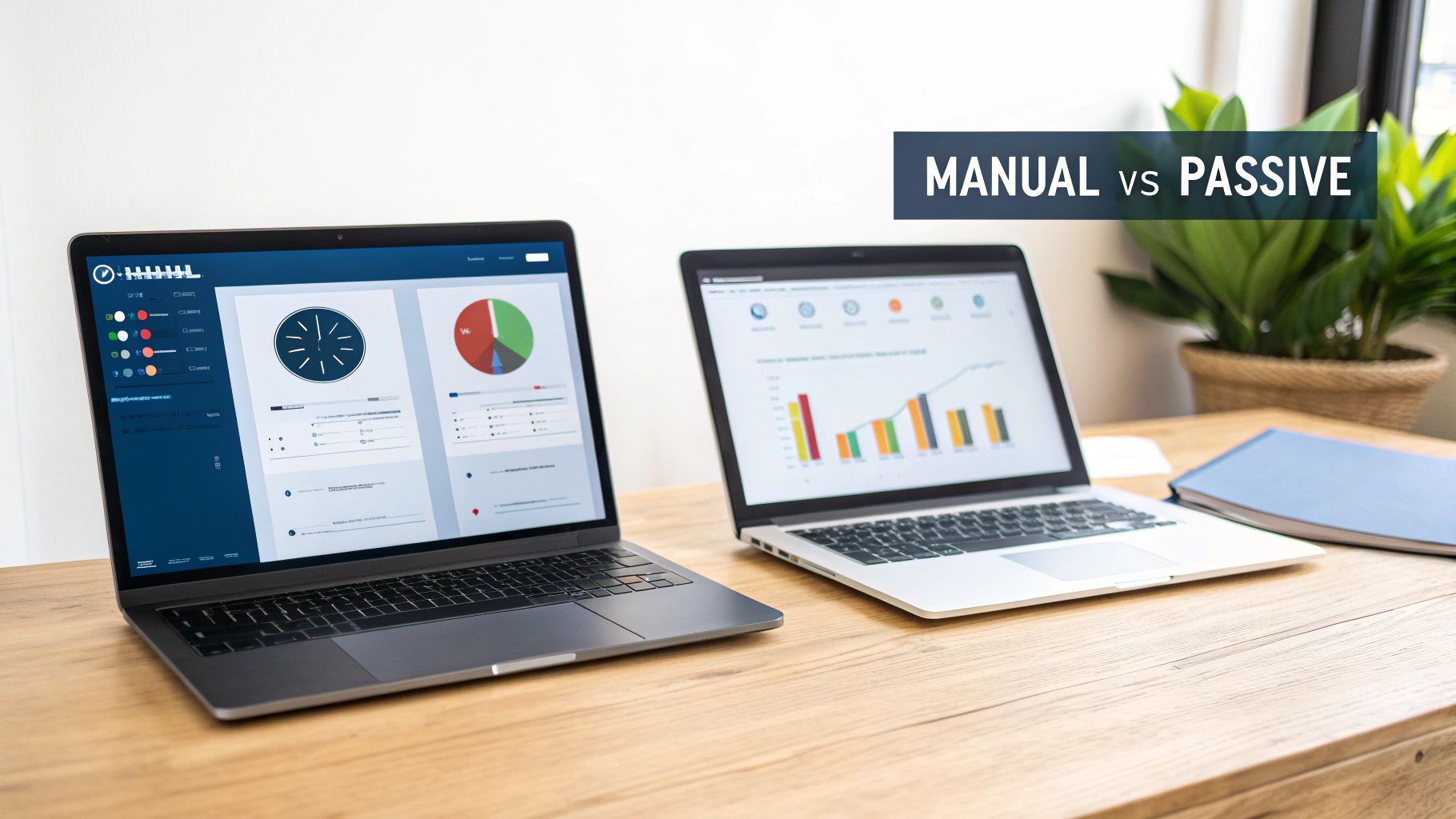
Manual Tracking vs. Passive Measurement
The core difference between these two platforms is their data model. One is active, requiring people to tell it what they're doing. The other is passive, capturing what's happening in the background without user input.
This single distinction drives everything else.
With Harvest, your team is responsible for starting and stopping timers or filling out timesheets after the fact. It’s a manual process that directly links a block of time to a specific project or task. The data is clean, explicit, and ready for an invoice because a person has already assigned it meaning.
WhatPulse works differently. It runs a lightweight application on each computer that passively captures endpoint activity—like which applications are open and for how long. It doesn't know why you were using Photoshop, only that you were. This creates an objective, minute-by-minute log of digital work without anyone needing to do anything.
Harvest vs WhatPulse At a Glance
This table breaks down the core differences in their approach and the business problems they solve.
| Criterion | Harvest | WhatPulse Professional |
|---|---|---|
| Data Model | Manual Entry (Active) | Passive Capture (Automated) |
| Primary Goal | Billing & Invoicing | Operational Analytics |
| Key Question Answered | "How many billable hours did we work on Project X?" | "How is our team's time actually being spent?" |
| Strength | Financial Accuracy for Clients | Internal Process Optimisation |
They aren't really competitors. They're designed to answer completely different business questions.
The entire Harvest experience is built around its manual, project-centric model, with a focus on timesheets and budgets.
This setup is ideal for seeing where billable hours are going and keeping projects on budget. The workflow is designed to translate an employee's time into a line item on an invoice. If you want a deeper dive into these concepts, you can explore the difference between tracking vs measuring in our guide.
The 'best' tool depends on the question you need to answer. If your question is about invoicing, Harvest is the direct answer. If it's about workflow efficiency or software spend, you need a different dataset.