

If you need a fast way to run Windows on a Mac, you have several options that suit different chips and tasks.
- Boot Camp on Intel Macs taps directly into hardware for maximum speed.
- Parallels Desktop (https://www.parallels.com) spins up Windows alongside macOS in minutes on both Intel and M-series.
- VMware Fusion (https://www.vmware.com) mirrors corporate environments for development and testing.
- Wine (https://www.winehq.org) lets you run many Windows apps without installing the full OS.
- Cloud Desktops stream Windows over the internet, cutting local maintenance.
Quick Overview Of Windows On Mac Options

Boot Camp suits gaming and heavy compute. Virtual machines work for everyday apps. Cloud desktops are handy if you work on the road.
Comparison Of Windows On Mac Options
| Approach | Platform Support | Performance | Setup Complexity | Ideal Use Case |
|---|---|---|---|---|
| Boot Camp | Intel Macs | Native speed | Medium (partition) | Gaming and heavy compute |
| Virtual Machines | Intel and Apple Silicon | High (VM overhead) | Low to medium | Business apps and testing |
| Cloud Desktops | Any internet-connected Mac | Moderate (stream) | Low (account setup) | Occasional or remote work |
Virtual machines balance performance and convenience across chip types.
Use the table to find the best option. For resource monitoring across macOS and Windows, try WhatPulse Professional.
Understanding Key Concepts
Running Windows on a Mac isn’t one-size-fits-all. On an Intel Mac, Boot Camp gives you full hardware access—native speed and direct GPU power. On Apple Silicon, Boot Camp isn’t available, but you can run ARM-native Windows builds or stream via a cloud desktop.
Virtualisation And Translation Layers
If you can’t reboot, virtualization steps in. Parallels Desktop and VMware Fusion run a VM side by side with macOS. They reserve CPU cores, RAM and GPU cycles so you lose only a bit of performance—enough for office apps or code work.
- Parallels Desktop sets up Windows in minutes, links files and clipboard with macOS, and supports ARM builds on M1/M2 chips.
- VMware Fusion matches corporate VMware stacks, offers snapshots and near-native speeds on Intel and Apple Silicon hardware.
- Wine translates Windows API calls directly. No full OS install, though some apps may stutter or not start.
Cloud And Remote Desktops
Offload Windows to a data centre to keep your Mac’s storage clear and centralise updates. You stream the session—no VM, no partition.
It depends on your network. A few milliseconds of lag can affect GPU work. For occasional use or remote teams, it’s efficient: one master image, quick provisioning and unified updates.
“Cloud desktops shift OS upkeep to data centres, letting small IT teams manage one master image rather than dozens of individual Macs,” notes a systems administrator.
Chip Compatibility Overview
Intel Macs have stable drivers for Boot Camp, VMs and Wine. On Apple Silicon, you need ARM-compatible Windows builds or a cloud stream. Rosetta 2 only translates macOS apps, not Windows binaries.
In the Netherlands, desktop Windows holds about 59.8%–69.8% of market share, while macOS sits between 9.6%–16.6%. That minority often needs Windows for specialised software, business apps or gaming. Discover more insights on StatCounter. (Learn more about OS market share findings)
Most Dutch Macs run Big Sur or later on both Intel and M-series models. Intel Macs rely on Boot Camp for offline work. Apple Silicon devices use Parallels’ ARM VMs or cloud clients like Windows 365.
Usually, people pick one of two paths:
- Dual-boot on Intel for full offline Windows
- Virtual machines for local access
Now you can move to step-by-step setup for partitions, VM configs and cloud connections.
Initial Setup Process
Plan disk space and hardware before partitioning or building a VM. Match the method to your Mac’s chip and your Windows tasks. Check prerequisites—from free drive space to ISO files or cloud subscriptions—to avoid mid-install issues like a full volume or missing drivers.
Partitioning With Boot Camp
On Intel-based Macs, Boot Camp Assistant creates a native dual-boot. It splits your drive and installs Apple drivers so you get full hardware access.
- Open Boot Camp Assistant in Applications > Utilities.
- Select your Windows ISO, then drag the slider to carve out at least 64 GB (128 GB recommended).
- Click Install and follow the prompts. Your Mac will reboot into Windows setup.
Boot Camp delivers native GPU and CPU performance with zero virtualization overhead.
After setup completes, Boot Camp installs keyboard, trackpad and graphics support. A final reboot lands you in Windows natively.
Configuring Virtual Machines
Using Parallels Desktop or VMware Fusion, assign drives, CPU cores and memory to tune performance on Intel or M-series hardware.
- Install your VM app and start a new VM wizard.
- Point to your Windows ISO, then assign at least 2 cores, ideally 4 for smooth multitasking.
- Allocate RAM (4 GB minimum, 8 GB+ for heavier work) and create an 80 GB+ virtual disk.
| Setting | Parallels Desktop | VMware Fusion |
|---|---|---|
| CPU Cores | 4 | 4 |
| RAM | 8 GB | 8 GB |
| Disk Size | 100 GB | 100 GB |
| Network Mode | Bridged Adapter | Bridged Networking |
You can adjust GPU memory or USB passthrough in Advanced settings to mount flash drives or PCI devices.
Virtual machines let you pause and snapshot your Windows state in seconds, avoiding reboots into macOS.
Snapshots guard you against driver issues or fragmentation. If an update breaks GPU acceleration or Windows slows, roll back in an instant.
Choosing ARM Windows Or Cloud
Apple Silicon lacks Boot Camp, so you have two routes: a native ARM Windows build or a cloud desktop.
To run ARM Windows locally, join Microsoft’s Insider programme for the VHDX image. Parallels Desktop supports it on M1/M2. Or stream via Windows 365 or Azure Virtual Desktop.
- Download the ARM VHDX (around 10 GB).
- In Parallels, choose New > Install Windows or another OS > Manual.
- Select the VHDX and let Parallels convert and optimise the VM.
Network bridging and USB passthrough work, but GPU acceleration remains virtualised. If I/O slows, move your VM disk to an SSD with TRIM support.
“Cloud desktops eliminate local disk fragmentation and ease management for remote teams,” says an enterprise admin.
If local ARM performance lags, stream Windows 365 for full desktop access without install conflicts or slow I/O. You pay subscription fees but avoid local driver issues.
Tips For Reliable Installs
- Update macOS before partitioning or creating VMs to match utility versions.
- Run First Aid in Disk Utility on your macOS volume to avoid fragmented partitions.
- Enable bridged networking for file transfers between macOS and Windows.
- Set up USB passthrough in your VM to connect sticks or cameras.
- If Boot Camp drivers fail, download them from Apple’s support site manually.
Check disk health regularly to prevent I/O slowdowns. Snapshots and backups limit downtime if a reinstall becomes necessary.
Learn more about filesystem setup and troubleshooting in our guide on installing on macOS.
Managing Disk And Drivers
Keep drivers and disks in good shape for smooth performance. In Boot Camp, use Windows Update and Device Manager to get the latest chipset, USB and GPU drivers.
- Check Device Manager for yellow warnings at least once a month.
- Defragment physical drives or optimise virtual disks every 30 days.
- After macOS updates, grab fresh support drivers from Apple.
Whether you choose Boot Camp, a VM or a cloud desktop, solid setup and regular maintenance pay off.
Comparing Windows On Mac Methods
Running Windows on a Mac means balancing speed, integration and upkeep. Each path—Boot Camp Assistant, virtual machines, compatibility layers or cloud streaming—has trade-offs.
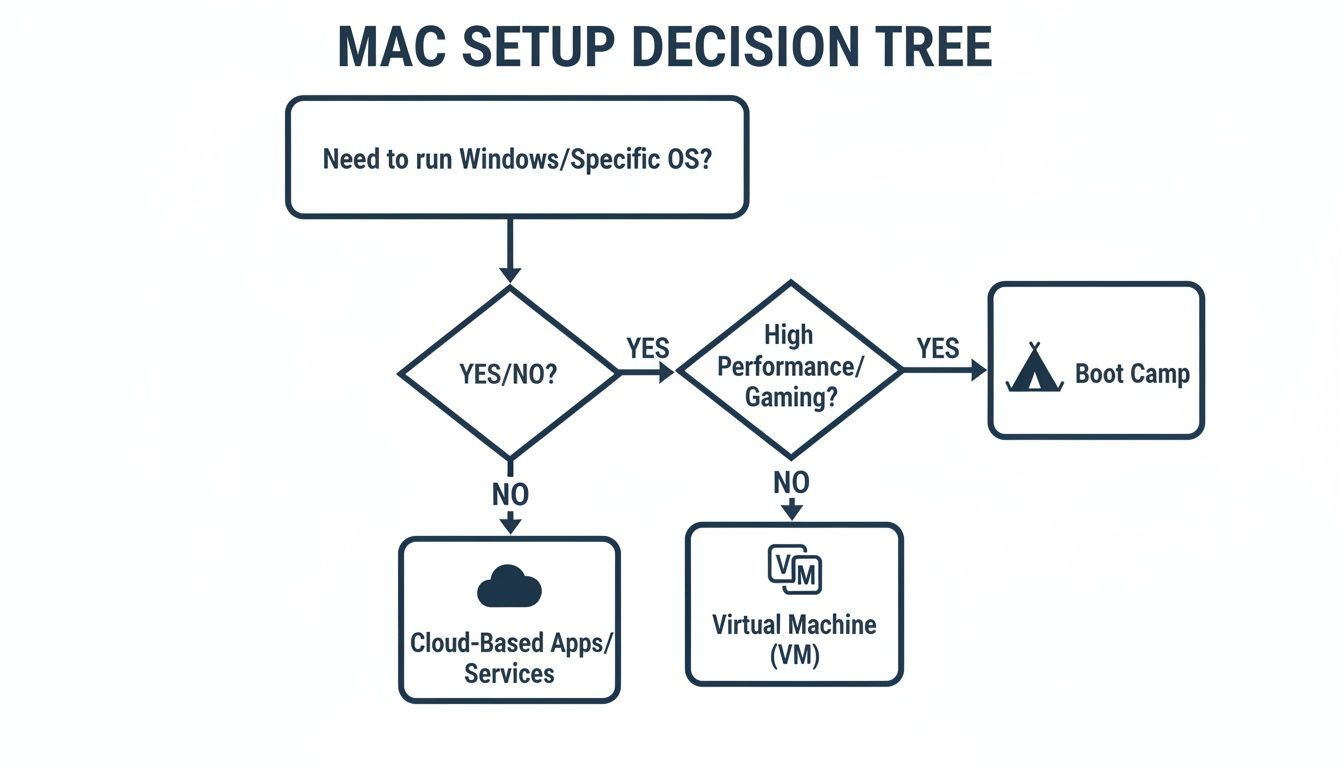
Windows On Mac Strategy Comparison
| Approach | Platform Support | Performance | Setup Complexity | Cost | Best Scenario |
|---|---|---|---|---|---|
| Boot Camp Assistant | Intel Macs | Native GPU access | Medium (disk partition) | Free + Windows OEM | Gaming and offline compute |
| Parallels Desktop | Intel & Apple Silicon | High (VM overhead) | Low | Subscription or licence | Everyday apps, snapshots, ARM support |
| VMware Fusion | Intel & Apple Silicon | High | Low-Medium | Perpetual or yearly | Enterprise testing |
| Wine | Intel & Apple Silicon | Moderate (no VM) | Low (no VM) | Free | Lightweight Windows binaries |
| Cloud Desktops | Any Mac over network | Variable (stream) | Very Low (account setup) | Subscription | Occasional use, distributed teams |
Integration matters in day-to-day use. Boot Camp Assistant taps hardware directly, so GPU-heavy tasks run at 0% virtualization penalty. Parallels Desktop and VMware Fusion layer Windows within macOS, sharing files, clips and peripherals.
WineHQ translates Windows calls into macOS ones, though driver coverage can lag. Cloud solutions like Windows 365 move the OS to data centres—hardware matters less, though network quality remains key.
Performance Benchmarks
On an Intel MacBook Pro with an i7, Boot Camp hit Cinebench R23 scores past 12 000, almost double what Parallels recorded. Parallels on M1/M2 typically runs at –20% CPU and –25% GPU versus native ARM builds.
- Boot Camp Assistant: near-zero virtualization overhead
- Parallels Desktop on Intel: around –15% CPU, –10% GPU slowdown
- Parallels Desktop on M-series: around –20% CPU, –25% GPU slowdown
- VMware Fusion on M-series: similar margins, plus advanced snapshots
- Cloud Desktops: expect 30–50 ms added latency; spikes to 200 ms possible
You can reserve up to 4 cores and 8 GB RAM on most M-series models.
Boot Camp nails raw speed but won’t run on Apple Silicon. VMs strike a balance. Cloud streaming fits remote or ad hoc use.
Security And Maintenance
Patch tasks vary by setup. Boot Camp relies on Windows Update and Apple drivers. Virtual machines need both host updates and guest tools in sync. Cloud desktops push unified fixes via central images.
In the Netherlands, rising M-series use has cut Boot Camp support on new machines. Many teams now favour virtualization or cloud streams to keep Windows working smoothly.
- Boot Camp drivers update monthly through Windows Update
- Parallels Tools or VMware Tools must match macOS releases
- Wine updates follow community schedules and can lag major Windows patches
- Cloud desktops push security fixes via a centrally managed image
Licensing And Cost Impact
Licences shape your budget. Boot Camp needs only a Windows OEM key. Parallels Desktop and VMware Fusion add their fees. Cloud services licence per user, per month.
For large Mac fleets, automate deployments with Microsoft Intune. See our guide on Microsoft Intune for automated Windows installs in enterprise fleets.
- Boot Camp + Windows OEM: €110–€135 per seat (one-off)
- Parallels Desktop: €70/year subscription or €90 one-off, plus Windows licence
- VMware Fusion: Free
- Cloud Desktops (Windows 365): €18–€45/user/month
- Volume Licensing: tiered enterprise pricing
Emerging Trends And Recommendations
ARM-native virtualization grew 35% in H1 2025 as Parallels optimized M-series support. Cloud Windows services rose 50%, driven by hybrid and remote teams.
If your fleet runs Intel Macs with offline GPU needs, Boot Camp still works best. For cross-chipset parity and updates, choose a VM like Parallels Desktop or VMware Fusion. Adopt cloud desktops when users are dispersed or need Windows only occasionally.
Your choice depends on hardware lifecycles, patch overhead and user needs.
Workflow Scenarios for Windows on Mac
Each team’s hardware and requirements guide the best Windows-on-Mac approach. From raw Intel performance to cloud desktops, trade-offs involve speed, compatibility and ease of management.
- Gaming on Intel: Boot Camp’s direct GPU pipeline or a VM with passthrough.
- Office Professionals: Parallels Desktop for Coherence, snapshots and clipboard sharing.
- Developers: Isolated Windows VMs with 4 cores, 8 GB RAM and snapshots.
- Students & Occasional Users: Stream Windows 365 or Azure Virtual Desktop to skip local installs.
Intel Mac Gaming Setup
For top frame rates, Boot Camp wins on Intel machines. Boot into Windows, install Boot Camp drivers and use the GPU fully.
In a VM, assign 4 CPU cores and 16 GB RAM in VMware or Parallels. Keep 128 GB free disk space and run macOS Catalina or newer for driver support.
“Boot Camp nails raw GPU speed with zero virtualization overhead, but it works only on Intel Macs.”
Office Productivity Workflow
Run Outlook, Excel and PowerPoint alongside macOS apps without switching contexts. Parallels Desktop’s Coherence mode blends both.
Use 2 CPU cores and 8 GB RAM. Then:
- Turn on Coherence to open Windows apps in macOS windows.
- Schedule snapshots before major updates.
- Add WhatPulse Professional to track CPU, memory and app usage across both systems.
Developer Testing Workflow
Test software in clean Windows sandboxes. Spin up VMs in Parallels or VMware and keep your main system untouched.
A solid spec:
- 3 CPU cores
- 6 GB RAM
- Virtual disks with snapshot support
Before each test, take a snapshot. If a build fails, rollback in seconds.
- sudo vmrun -T fusion start "Windows Test.vmx" peak
- vmrun snapshot "Windows Test.vmx" TestBackup
- sudo vmrun -T fusion stop "Windows Test.vmx" soft
Cloud Desktop Scenario
Skip hardware hassles by streaming Windows desktops. Windows 365 or Azure Virtual Desktop deliver a full session via a client and VPN.
Allocate 2 vCPU, 4 GB RAM and 50 GB storage for light work. Patching, backups and scaling happen in the cloud.
“Cloud desktops streamline provisioning and updates for remote learners or contractors.”
IT Deployment Considerations
At scale, manage licences, security and analytics from a central point. Tie Windows VMs and cloud instances into Active Directory or Azure AD.
Roll out WhatPulse Professional via group policy to gather keyboard, mouse and app usage metrics—without private data.
| Scenario | CPU | RAM | Storage |
|---|---|---|---|
| Gaming | 4 cores | 16 GB | 128 GB |
| Office | 2 cores | 8 GB | 80 GB |
| Dev | 3 cores | 6 GB | 100 GB |
| Cloud | 2 vCPU | 4 GB | 50 GB |
Match your team’s gear to the right workflow. Review WhatPulse logs weekly to fine-tune CPU, memory and storage as needs change.
Key Takeaways
- Boot Camp delivers maximum GPU performance on Intel Macs.
- Parallels Desktop excels for office workflows with Coherence and snapshots.
- Snapshots and isolated VMs speed up developer testing cycles.
- Cloud desktops cut local maintenance and centralise updates.
Licensing Security And Management
Rolling out Windows on many Macs means licence choices affect budget and security. Upfront or recurring costs shape patch routines and endpoint controls.
Key Focus Areas:
- Licence Model
- Update Automation
- Security Controls
- Integration Points
Volume Licensing Vs Subscriptions
Volume Licensing (https://www.microsoft.com/licensing) bundles tiered pricing, per-device or per-user options plus Software Assurance. Windows 365 subscriptions bill per user, per month and handle image updates automatically. OEM keys fit standalone installs but lack central controls.
| Model | Licence Type | Cost Structure | Best Fit | Example Use Case |
|---|---|---|---|---|
| Volume Licensing | Per Device or Per User | One-off + SA | Large Mac Fleets | 100-seat academic labs |
| Windows 365 Subscription | Per User Monthly | Recurring | Remote or Hybrid Teams | Consultants on global sites |
| OEM Licence | Single Device | One-off | Standalone Installs | A single Boot Camp MacBook |
Volume Licensing scales licences and updates across hundreds of Macs with predictable spend.
Security Best Practices
Lock down remote access and encrypt data to avoid breaches.
Use BitLocker or a trusted tool to secure VM drives. Protect both host and guest with Microsoft Defender for Endpoint.
- Restrict RDP to specific IP ranges or over VPN
- Enable AES-256 on VHDX and VMDK files
- Apply VM security policies via your MDM
- Require MFA for admin accounts
In one Dutch consultancy, central licence management and automated patches cut costs by 30% across 200 Macs.
“Consolidating licences and automating patches saved us weeks of manual work,” says the IT lead.
Identity Integration
Sync Azure AD groups to control RDP access, enforce device compliance checks and push security profiles from your MDM for consistent settings.
Monitoring And Compliance
WhatPulse Professional runs on both macOS and Windows, tracking:
- CPU and memory drift
- App adoption trends
- Patch compliance rates
- Licence utilisation metrics
See our guide on optimising software licences for mixed environments for details.
Reporting Workflows
Automated compliance reports keep stakeholders informed without extra work.
- Export licence usage CSVs on a schedule
- Visualise patch status in dashboards
- Trigger email alerts for non-compliance
“Automated compliance reports saved us 20 hours per month,” says a systems manager.
Combine real-time analytics with regular reports and licence compliance stays on track.
Frequently Asked Questions
Practical answers around compatibility, performance and management for Intel or Apple Silicon, solo users or IT teams.
Running Windows on Apple Silicon
Skip Parallels fees with a local ARM VM via UTM or a cloud desktop.
- Grab the Windows ARM VHDX from Microsoft Insider Preview.
- Open UTM > File > Import and point to the VHDX.
- Assign 2 CPU cores and 4 GB RAM.
This gives you a local VM without extra licence costs.
Best Graphics Performance on Intel Macs
For full GPU power, go native with Boot Camp. It runs Windows at 0% virtualization overhead.
In macOS, tune Parallels or VMware Fusion for GPU passthrough in VM settings.
Managing Windows Licences Across Multiple Macs
Volume Licensing or a Windows 365 subscription eases key tracking. A typical KMS rollout:
- Set up a KMS server in your data centre
- Point each Mac to the KMS host via group policy
- Check activation health with Slmgr.vbs or PowerShell
This keeps all Macs compliant without handling individual keys.
Switching Between macOS and Windows
Dual-boot or VM—pick your method. Boot Camp needs Option at startup. VMs use shortcuts to pause and resume.
| Scenario | Key Combo | Benefit |
|---|---|---|
| Boot Camp | Hold Option | Full performance |
| Parallels Coherence | Ctrl+Alt+Enter | Seamless app integration |
| VMware Fusion | Cmd+Ctrl+Return | Instant VM window mode |
Close and reopen your cloud client to switch back to Windows 365 or Azure Virtual Desktop.
Before you go live, keep macOS updated and backup VM snapshots regularly. A well-prepared setup cuts downtime and smooths transitions.
Gain real-time insights into licence use and device performance with WhatPulse Professional. Start your trial today at WhatPulse Professional.
Start a free trial